Opmet
The Opmet module is application module used for the querying and display of standard WMO bulletins such as METAR, TAF, SIGMET in alpha-numeric format. The data retrieval is based on querying criteria using either WMO Header or the ICAO code of the OPMET message.
When the OPMET module is first opened, the user is presented with the following OPMET Data Selection Panel.
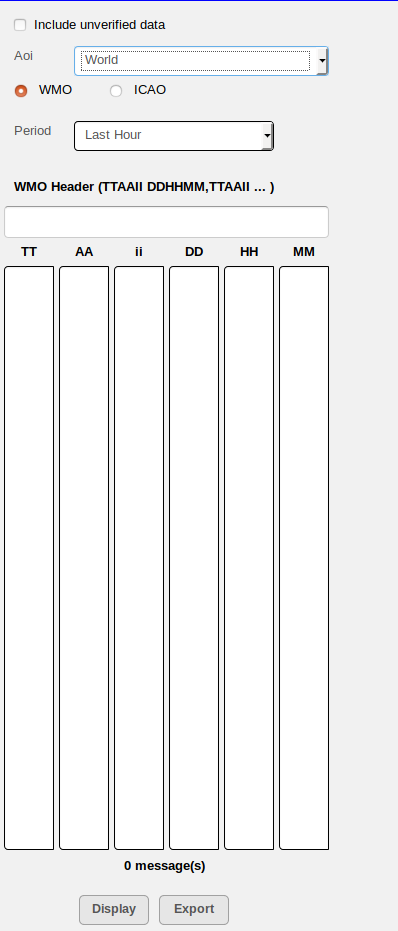
Fig. 18 The OPMET Data Selection Panel
This panel allows user to filter out data for display either by using the WMO Header or the ICAO Code of the OPMET message. By default, the radio button of WMO is selected and ICAO is un-selected as shown in the figure.
Query by WMO Header
First, click on the WMO Radio Button to enable query by WMO Header When it is enabled, the query criteria contains with the following: AOI, Period, WMO Header
In the drop-down list AOI, click on the AOI within which the queried OPMET data should be found. In the drop-down list Period, click to select how many hours in the past to include. Then in the text field, enter part of the WMO Header to match for. Once these selections are made, all the available matching OPMET data will be listed in the columns below which are ordered according to the WMO Header code sequence TT AA ii DD HH MM. If this WMO Header text field is left blank, all the available OPMET data will be listed in the columns below.
Further filtering can be done by clicking on the particular part of the WMO Headers appearing in the columns. Once user is satisfied with the selection, click on the Display Button to display the selected OPMET bulletins on the Main Data Display Pane on the right.
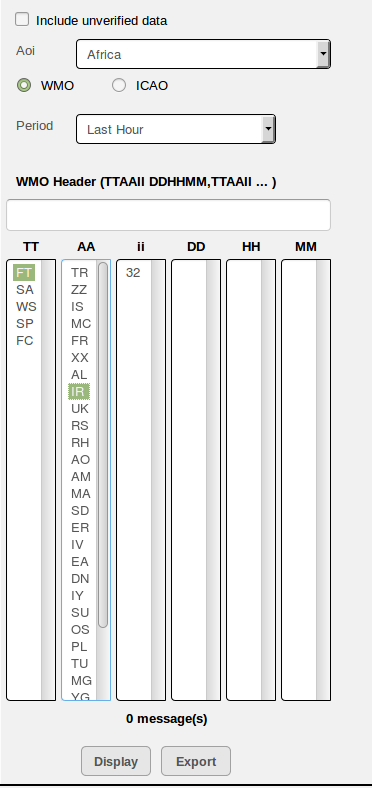
Fig. 19 OPMET Data Selection Panel with query by WMO enabled.
Query by ICAO Code
First, Click on the ICAO Radio Button to enable query by ICAO Code When it is enabled, the query criteria contains with the following: AOI, Period, ICAO Code
In the drop-down list AOI, click on the AOI within which the queried OPMET data should be found. In the drop-down list Period, click to select how many hours in the past to include. Then in the ICAO List Box, click to select the specific ICAO Code to match. Once these selections are made, all the available matching OPMET data will be listed in the columns below which are ordered according to the WMO Header code sequence TT AA ii DD HH MM.
Further filtering can be done by clicking on the particular part of the WMO Headers appearing in the columns. Once user is satisfied with the selection, click on the Display Button to display the selected OPMET bulletins on the Main Data Display Pane on the right.
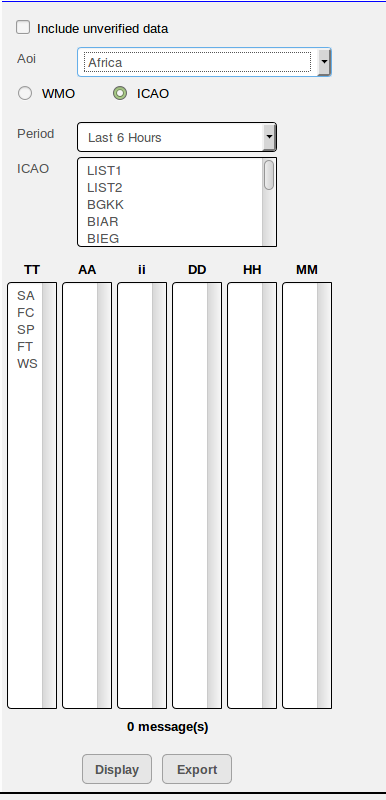
Fig. 20 OPMET Data Selection Panel with query by ICAO enabled.
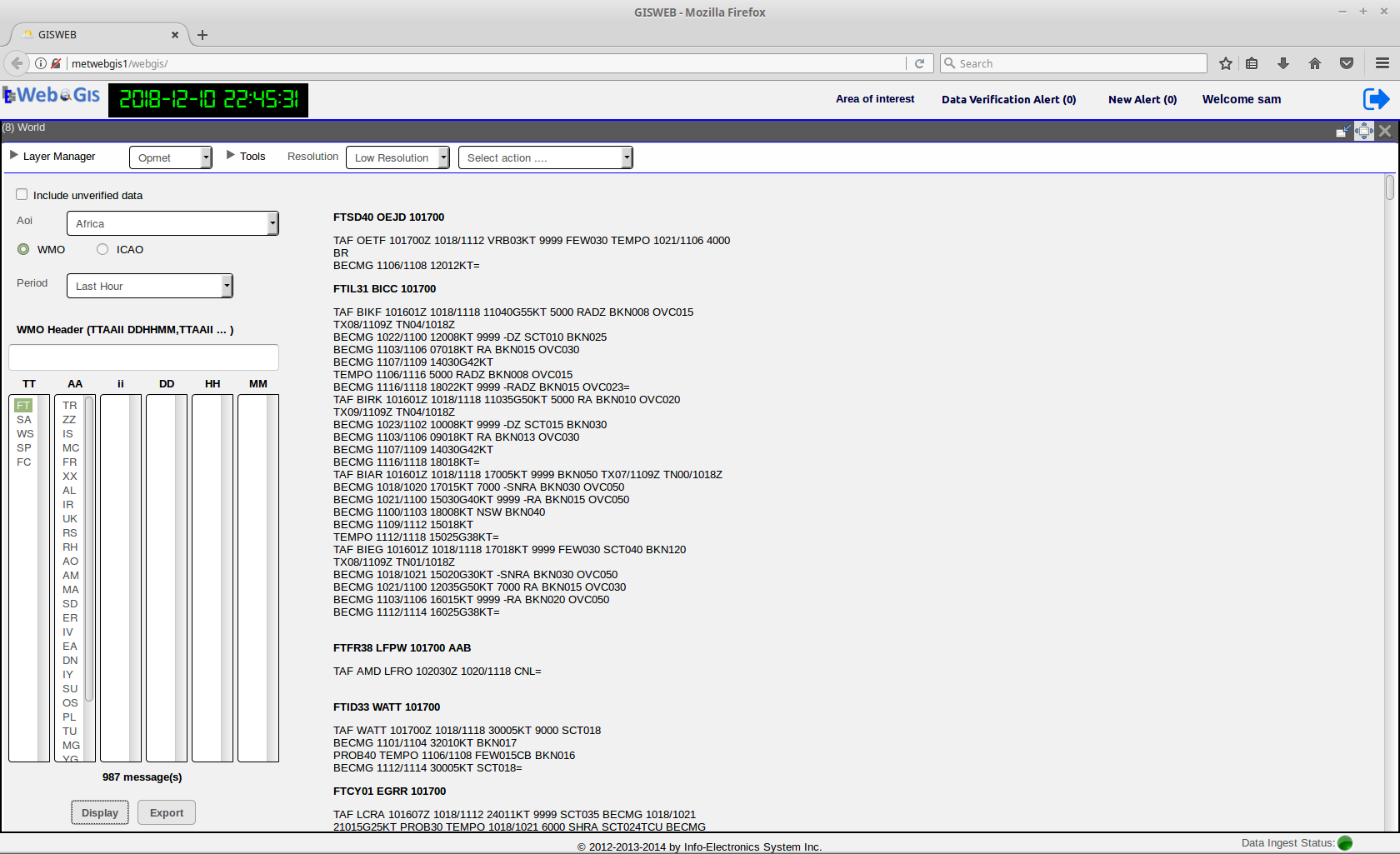
Fig. 21 Display of the WMO Bulletins
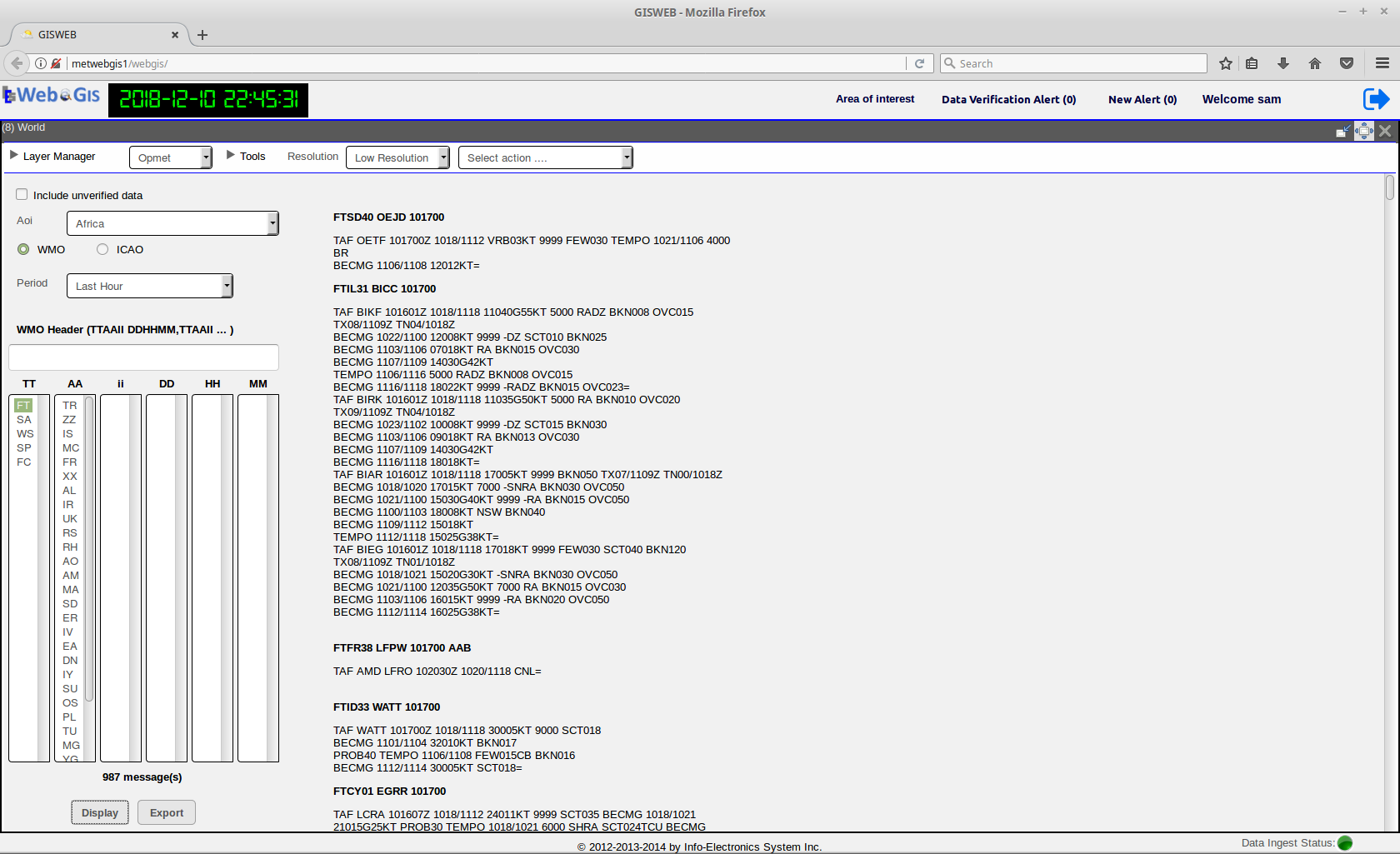
Fig. 22 Display of the WMO Bulletins
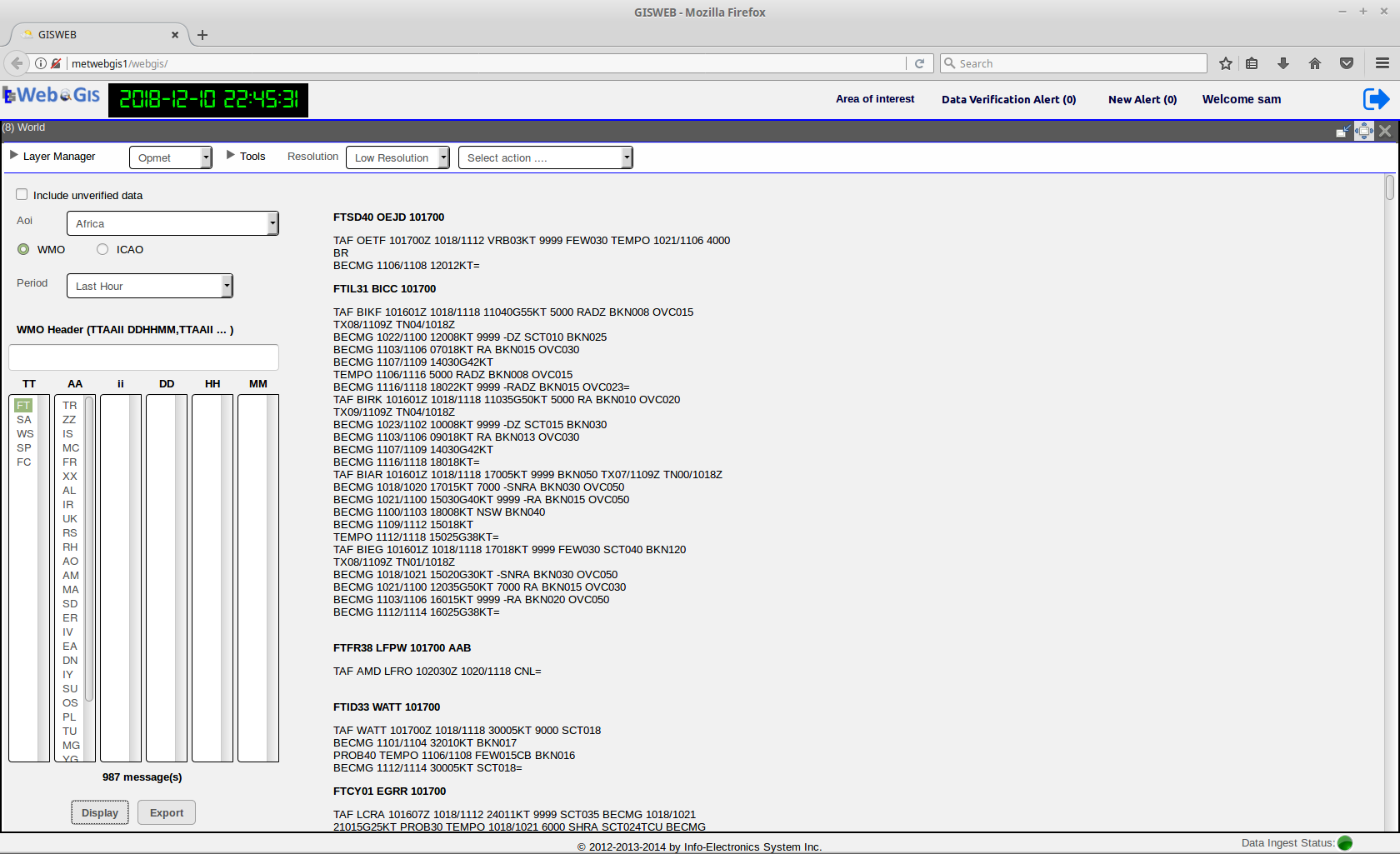
Fig. 23 GUI of the Opmet Module
Exporting the OPMET Data
The display of the OPMET data resulting from the query can be exported as a text file for offline use and/or printing. Following the steps in the previous sections to make the OPMET data query. Then click on the Export Button at the bottom of the OPMET Data Selection Panel. An exportable text file will then be generated and presented on a separate browser tab. Using the menus from a standard browser, the user can choose to either save it for offline storage or send it to the printer for print.